
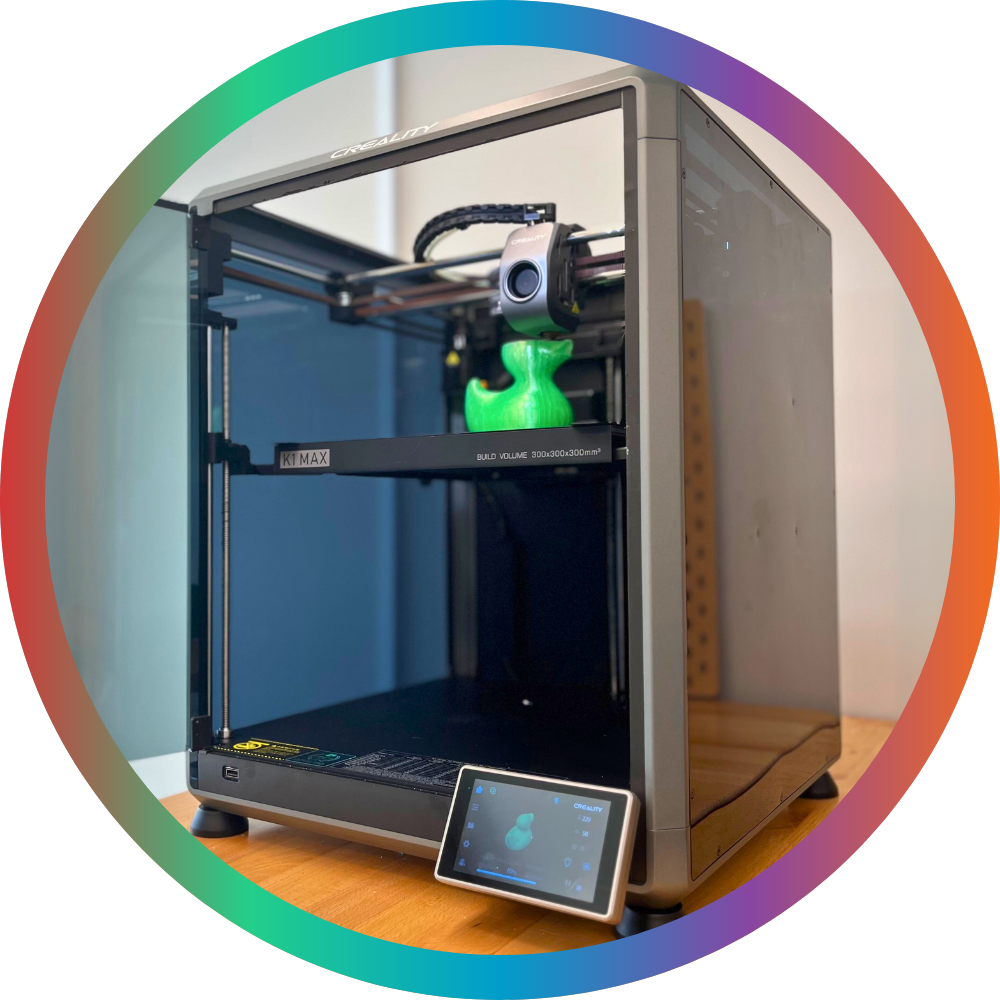
The Delhi Branch 3D printer is the Creality K1 Max model.
This website uses cookies to enhance usability and provide you with a more personal experience. By using this website, you agree to our use of cookies as explained in our Privacy Policy.
3D Printer
The Delhi Branch 3D printer is the Creality K1 Max model.
Prepare your print in Creality Print.
You can download your 3D model in the MakerSpace and insert it to Creality Print to prepare your print on site.
Or, you can prepare it in Creality Print ahead of time from your own device and export the G-code with all your print settings configured.
PLA Filament is available in a variety of colours on a cost recovery basis. Visit the TD MakerSpace to see what options are currently available.
For material prices, visit the MakerSpaces page.
Patrons can book time on the 3D printer computer to prepare and queue their prints.
Reserve the 3D Printer computer here.
3D prints can take many hours. Reserving the 3D printer computer does not guarantee that the 3D printer will also be available at that time.
If the printer is available, you can start printing it right away.
If it is not, you can send your prepared print to the printer and then queue it with staff. To queue your print, tell staff the name of the print job you sent to the printer and which filament you would like to print it with.
Either way, leave your contact details with staff at the circulation desk so we can contact you when your print is complete.
Button Maker
The Waterford Branch has a 58mm button maker.
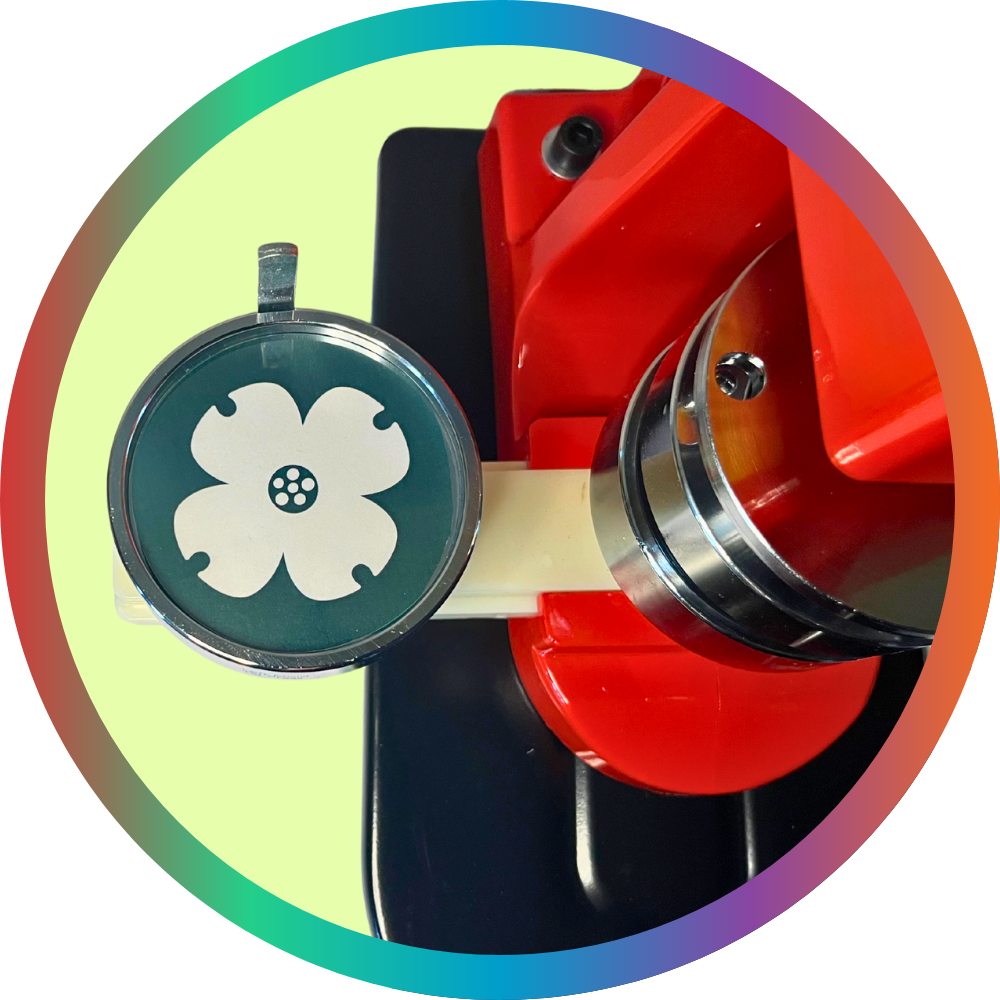
For a 58mm button:
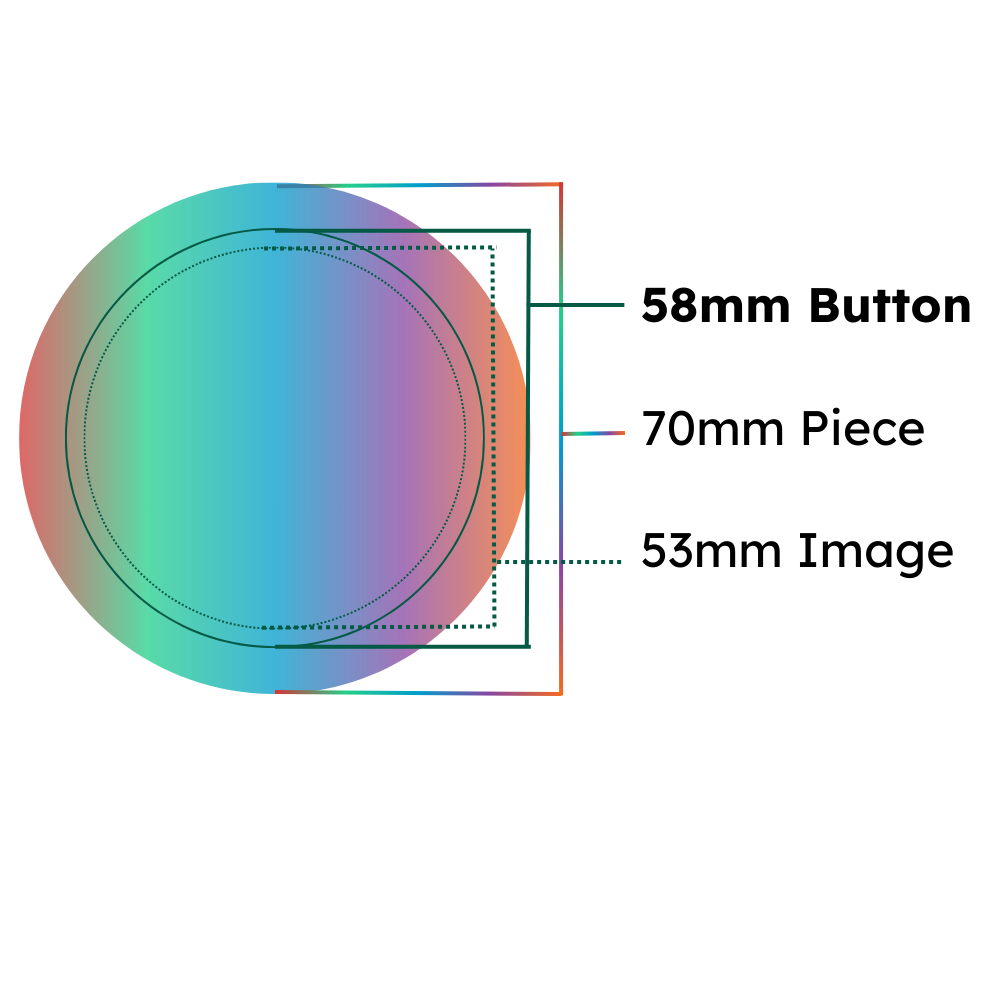
For materials and prices, see the MakerSpaces page.
Cricut
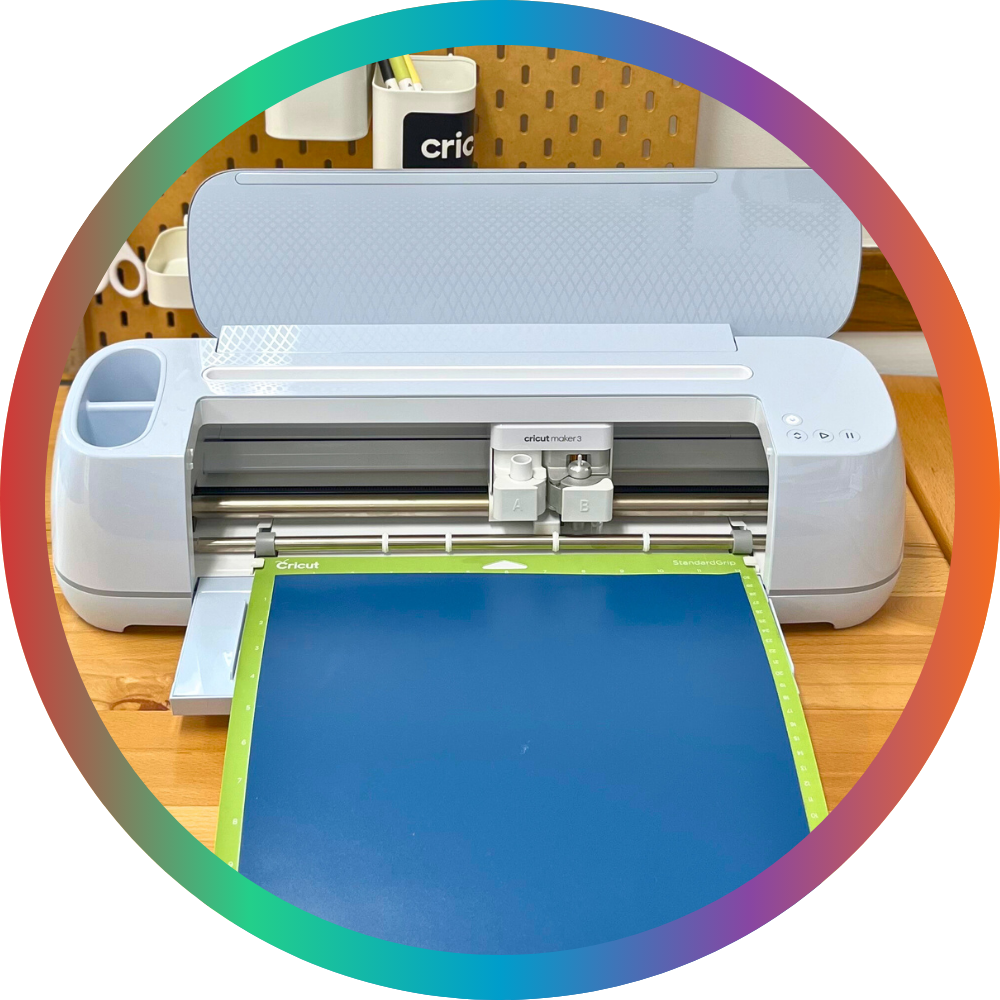
Each NCPL Branch has a Cricut Maker 3 available for patron use.
When preparing your project in Cricut Design Space, be sure your machine is set to Cricut Maker 3.
The Waterford Branch has a 9" by 9" Cricut EasyPress with pressing mat and a mug press and available for patron use.
The EasyPress may be used to use to apply compatible materials to flat surfaces. Heat-transfer vinyl is provided in the MakerSpace on a cost-recover basis, or you may bring your own materials.
The mug press must be used with a sublimation-compatible mug and infusible ink, either in the form of infusible ink transfer sheets or infusible ink drawings on paper.
Patrons must supply their own infusible ink. These supplies are available directly from Cricut or in a variety of craft supply stores.
The Library does keep a supply of sublimation-compatible mugs in the MakerSpace on a cost recovery basis. Patrons may also supply their own mug, as long as it is compatible as a "blank" for sublimation transfer. If the coating on the mug is not appropriate for sublimation transfer, the design will not transfer to the mug. Cricut produces a variety of "mug blanks" in different sizes and styles available for direct purchase, and these can sometimes be found in craft stores from Cricut and other suppliers, too.
Be sure to use the appropriate temperature and timing settings for the material you are using.
The following machine tools are available to use with the Cricut:
We make every effort to replace worn out or damaged machine tools without any disruptions to service.
If you believe a machine tool needs to be replaced while you are using the Cricut, please inform one of our helpful staff right away.
Many Cricut materials must be loaded on to the machine on an adhesive mat.
The following mat types and sizes are available to use with the Cricut Maker 3 in Delhi at no cost:
Patrons may also bring their own Cricut Smart materials which can be loaded into the machine without a mat.
You may also bring your own Cricut mats, including specialty mats, as long as they are compatible with the Maker 3.
For materials and prices, see the MakerSpaces page.
Reserve MakerSpace Access
You can reserve time in the MakerSpace right here!
Patrons may reserve time on any piece of equipment. You can also reserve access to the MakerSpace to use the space without using any of the reservable equipment.
Other patrons may be using the MakerSpace at the same time as you, whether using a different piece of equipment or using the space.
MakerSpace equipment or access must be reserved before it can be checked out, and it can only be checked out to the library card used to make the reservation.
To make a reservation, you must:
The patron who makes the reservation must be present at checkout, and is responsible for any guests they bring with them. Children may only use the MakerSpace when they are accompanied by an adult, and that adult must have a reservation with their library card.
The full MakerSpace terms of use will be presented as part of the reservation process. These terms must be accepted before the reservation can be completed.
Contact Us
Norfolk County Public Library
46 Colborne St. S.
Simcoe, Ontario N3Y 4H3
Phone: 519-426-3506
Fax: 519-426-0657
Locations and Hours